
Want more CODs, not just leads? You’re in the right place.
Share:
If you are running a home service business, you know that finding good help is a nightmare, and frankly, you probably don’t have time to build a Hiring Resume Analyzer automation in N8N from scratch without a little guidance.
I’ve been there—sitting at the kitchen table at 9 PM, staring at a pile of printed resumes or a cluttered email inbox, trying to figure out if “John from Craigslist” actually knows how to fix a furnace or if he just knows how to use a spellchecker.
It is exhausting.
And the worst part? You usually miss the best candidate because you were too busy working in the field to call them back fast enough.
But what if you had a robot that read every single resume the second it came in, graded it like a strict schoolteacher, and put the winners in a neat spreadsheet for you?
That is exactly what we are talking about today.
This isn’t sci-fi; it’s a practical workflow using N8N, Google Drive, and AI that we use to help business owners get their sanity back.
Automated Sorting: The system watches a Google Drive folder and instantly picks up any new PDF resume you drop in.
AI Scoring: An AI agent reads the text and gives the candidate a score (0-100) based on skills you actually care about, like troubleshooting or mechanical aptitude.
Instant filtering: Candidates who score low are automatically moved to a “Not Recommended” folder, keeping your desk clean.
Structured Data: No more messy notes; the AI pulls out names, phone numbers, and skills into a clean Google Sheet.
Files Renamed: The file itself is renamed to include the candidate’s score, so you know who is worth opening just by looking at the file name.
Let’s be real for a second. When you post a job for a technician or an office admin, you get flooded. Half the people don’t have a driver’s license, and the other half live in a different state.
But you still have to open every file, read it, and decide. That time adds up. If it takes you 5 minutes to review a resume and you get 50 applicants, that is four hours of your life gone.
And during those four hours, the one “A-Player” tech who applied already took a job with your competitor because they called him first.
We built this workflow in N8N because it is flexible and affordable.
Here is the “under the hood” breakdown of what happens when you set this up.
The Trigger Everything starts with a simple Google Drive folder. You or your admin simply drag a PDF resume into a folder named “Incoming Resumes”. That’s it. The automation is watching this folder like a hawk.
The Brain (AI Agent) Once the file lands, N8N grabs it and extracts the text. It sends that text to an AI Agent (we use OpenAI for this).
This isn’t just “reading” the text; the AI is following a strict set of rules we gave it.
We tell it to look for specific things, like mechanical experience or certifications, and to ignore fluff.
The Decision The AI assigns a score from 0 to 100.
If the score is 50 or higher (you can change this number), the candidate is marked as “Recommended”.
If they score lower, they go to the “Not Recommended” pile.
You might be thinking, “Can a computer really judge a plumber?” Surprisingly, yes. The magic is in how we weight the score.
In this workflow, we set up weighted categories. For example, we might give 30 points for mechanical aptitude and 10 points for troubleshooting skills. We also tell the AI to look for “Red Flags” and subtract points if it finds them. This means the score isn’t random.
It reflects your hiring criteria. And because the output is structured JSON data, you get a clean summary, not a rambling essay.
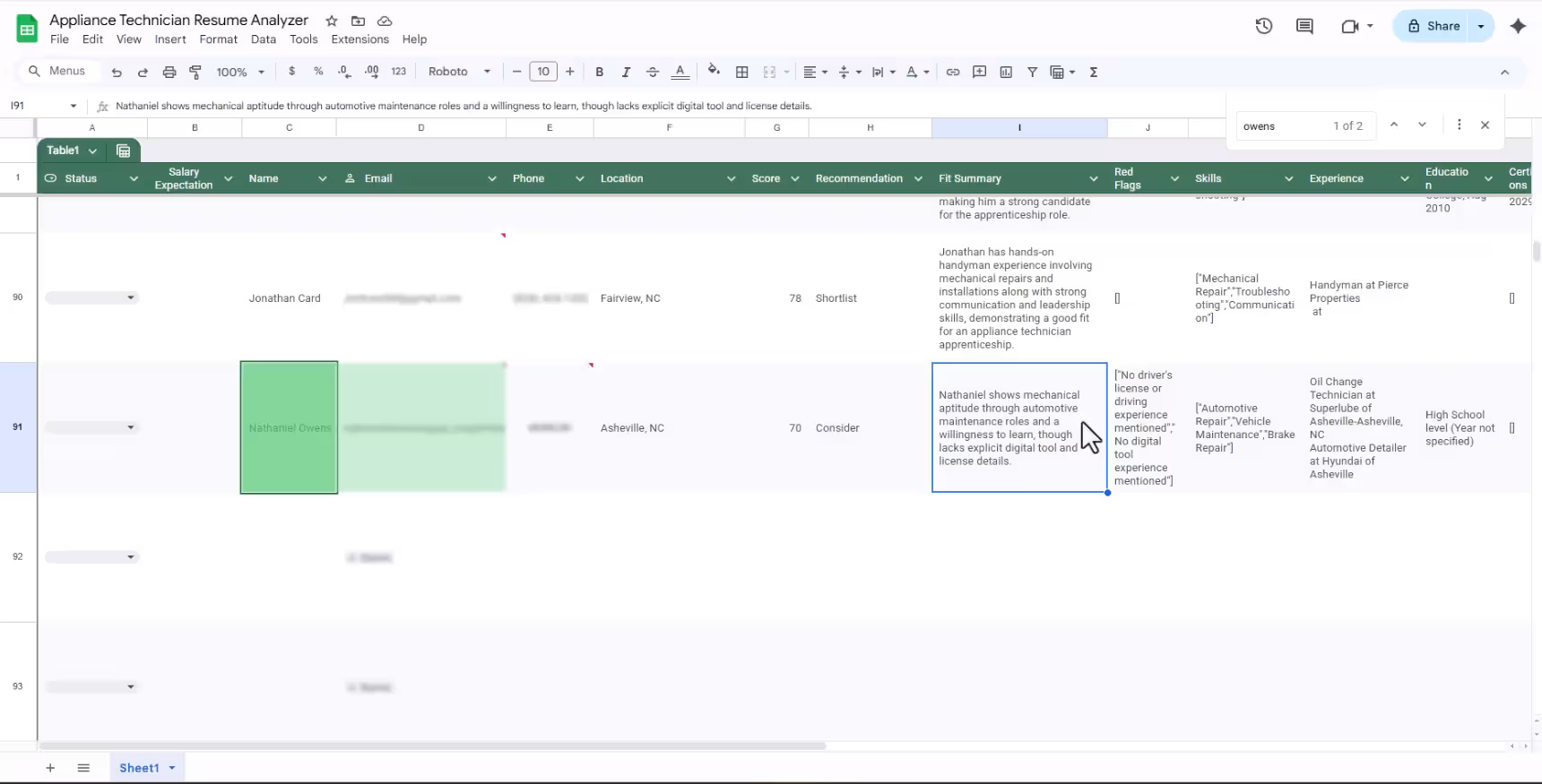
The end result of this automation isn’t just a sorted pile of files; it’s a dashboard. The workflow connects to a Google Sheet and creates a new row for every applicant.
Columns the automation fills out for you:
Candidate Name & Contact Info: Pulled right from the header of the PDF.
Fit Score: That 0-100 number we talked about.
Summary: A one-line description of why the AI liked (or didn’t like) them.
Resume Link: A direct link to the file in Google Drive so you can click to read the full doc if you are interested.
This turns your messy hiring process into a neat table where you can just look at the top 5 scores and start dialing.
You don’t need a degree in computer science, but you do need a few tools hooked up. To get this running, you will need an N8N account, obviously.
You also need a Google account for Drive and Sheets.
Finally, you need an OpenAI API key. This is what powers the brain of the operation.
The Folder Structure: You will need to create three folders in your Google Drive before you start:
Incoming Resumes: This is the “Watched Folder” where you drop new files.
Recommended: Where the winners go.
Not Recommended: Where the rest go.
One of my favorite little features in this workflow is the file renaming. When the AI is done, it doesn’t just move the file. It renames it to include the score.
So instead of a file named “Resume_Final_v3.pdf,” you see “John_Doe – Score 85.pdf”.
It sounds like a small thing, but when you are scanning a folder of files, seeing that number right in the filename saves you so many clicks.
Is N8N expensive to use for this? N8N is actually very affordable compared to enterprise hiring software. You can often run it on their self-hosted version for free if you are tech-savvy, or pay a small monthly fee for their cloud version. The main cost is the OpenAI API usage, which is usually pennies per resume.
Can I change the scoring criteria? Absolutely. The logic lives in the “Prompt” inside the AI node. You can edit the prompt to prioritize “customer service” over “mechanical skills” if you are hiring a dispatcher instead of a tech.
What happens if a resume is a scanned image? The default setup expects text-based PDFs. If you get a lot of photos or scanned images, you would need to add an OCR (Optical Character Recognition) node before the AI step to turn that image into text.
Does this work for handwritten applications? Not really. Unless you have amazing OCR software, handwritten notes are too messy for the AI to read reliably. This is best for typed resumes submitted digitally.
Is my data secure? You are using your own Google Drive and your own OpenAI API key. You aren’t uploading this to some random third-party hiring platform. You keep control of your data.
Hiring doesn’t have to be a guessing game, and it definitely shouldn’t take up your entire evening. By setting up a workflow like this, you aren’t just saving time; you are standardizing how you judge talent. You get a consistent, unbiased look at every applicant, and you get it instantly.
If you are comfortable with APIs and JSON, you can build this Hiring Resume Analyzer automation in N8N yourself using the steps I laid out. But if looking at node graphs and configuring OAuth credentials makes your eyes cross, don’t worry.
We build these custom automations for home service business owners all the time. We can set it up, tweak the scoring for your specific trade, and hand you the keys.
Want to automate your hiring pipeline? Let’s get to work at Super Service Bros.