Want more CODs, not just leads? You’re in the right place.
Share:
If you have ever done a physical appliance inventory, you already know how painful this part is. Crawling behind units, taking pictures of model tags, and then manually typing out those long serial numbers.
You type it, double-check for typos, and then realize later you missed a digit .
When we had to do a full warehouse inventory, this step alone was costing us hours of manual labor. It also introduced errors that caused massive headaches in our inventory system later on.
That is why we built this automation. It eliminated the manual work almost entirely.
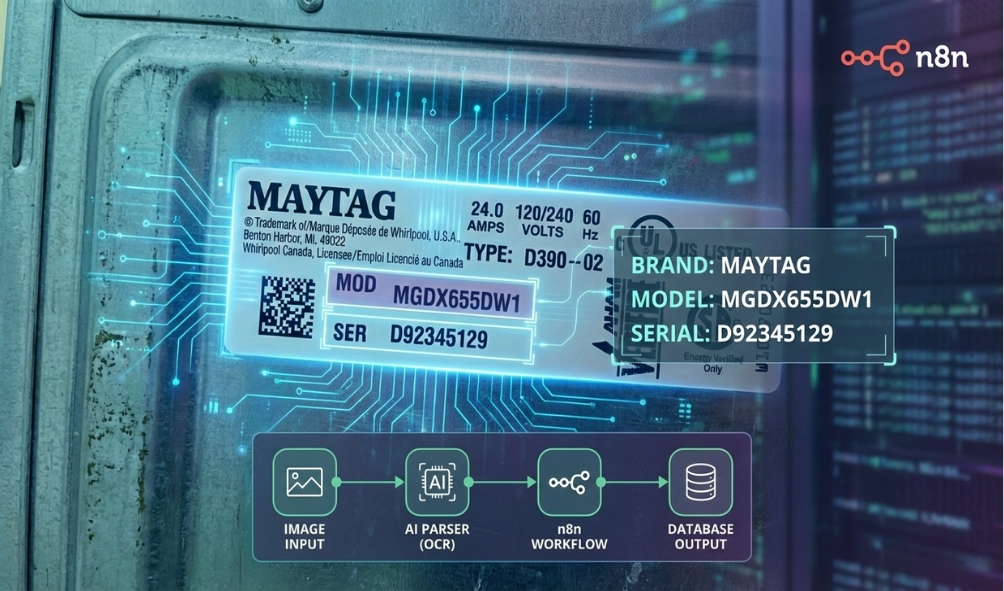
This article walks you through how to build a Retail Appliance Model & Serial Tag Parser Using AI and n8n so you never have to squint at a serial tag again.
Retail and warehouse inventory breaks down because humans get tired. Model tags are inconsistent across brands, and serial numbers are long and error-prone .
Photos are easy to take, but processing them is hard. When you force staff to manually enter data for hours, fatigue sets in, and that is when typos happen.
The solution isn’t to tell your team to “type faster.” The solution is to not type at all .
Here is what happens automatically when you use this workflow:
No manual typing. No copy-paste. No guessing.
We didn’t build this for perfect studio lighting.
This workflow assumes you will have blurry photos, glare, partial labels, and tags with multiple confusing numbers on them .
That is why it uses multiple AI layers instead of just basic OCR (Optical Character Recognition).
The workflow watches a specific Google Drive folder. Whenever a new image is added, the automation triggers immediately. There are no buttons to click and no apps to open. This makes it perfect for warehouse teams using phones or tablets to upload simultaneously.
The image file is downloaded into the workflow so it can be processed. This ensures we get full resolution without compression artifacts, which leads to better accuracy.
The workflow sends the image to an OCR engine (like Mistral OCR). This step reads all visible text and preserves the layout . However, OCR just gives us raw text. It doesn’t know which number is the serial and which is the voltage.
Now the real intelligence kicks in. We prompt an AI agent to behave like an appliance technician with 20+ years of experience. Its job is to analyze the OCR output, identify the correct model and serial numbers, and ignore the irrelevant stuff. Crucially, if the tag is unclear, the AI is instructed not to guess.
A Switch node checks that confidence score.
The final step logs the results into Google Sheets. It captures the Model, Serial, Confidence Score, and a direct link to the image . It even handles duplicates by updating rows if the same serial is scanned again.
During a recent warehouse inventory, staff simply walked the floor taking photos. No typing was required, and virtually no training was needed. The inventory populated in real-time. Low-confidence items were reviewed later.
What normally took days was reduced to a fraction of the time, with far fewer errors.
This workflow succeeds because it balances automation with human judgment. OCR extracts the text, AI applies the judgment, and confidence scores control the risk. Humans only have to review the exceptions. AI does the boring work.
This automation is designed so you can import a ready-made workflow and just connect your accounts. No logic needs to be rebuilt.
Make sure you have:
This automation starts when a photo is added to a specific folder.
The workflow expects two additional folders to organize the files. Create these manually in Google Drive:
Note the Folder IDs for these; you will map them later so the automation knows where to move files.
You’ll map these IDs later so the automation can:
Do not replace this with basic OCR. This specific setup is needed to handle messy tags.
This is where the automation “understands” the tag.
The AI is instructed to:
Do NOT remove:
These are what make the workflow safe.
A Switch / IF node checks the score. By default, ≥ 70% is treated as reliable and logged. Anything < 70% is moved to the “Needs Review” folder. You can adjust this, but 70% usually works well.
High-confidence images are renamed automatically to MODEL_NUMBER – SERIAL_NUMBER. No setup is required here unless you want a different naming format.
Format:
MODEL_NUMBER – SERIAL_NUMBER
Example:
WRF535SWHZ – KX2134567.jpg
This makes:
The workflow:
Before turning it on:
If something fails:
Once testing passes, toggle the workflow to Active. From now on, photos become inventory records automatically.
From now on:
You will need no typing nor double-checking serials.
Can this read handwritten tags? It depends on the OCR engine, but generally, this is optimized for printed manufacturer labels. Handwriting is much harder to predict and may result in lower confidence scores.
What happens if there is no serial number on the tag? The AI is instructed not to guess. If it cannot find a serial number, it will likely return a low confidence score, and the image will be moved to the “Needs Review” folder for you to check manually.
Does this work with any smartphone? Yes. As long as the phone can upload images to Google Drive (via the app), it works. You can use an iPhone, Android, or even a tablet.
Is my data private? You are using your own Google Drive and your own AI API key. The data stays within your controlled accounts and is not shared with a third-party platform.
Inventory shouldn’t be a typing contest.
This automation turns photos into structured inventory data automatically. It reduces fatigue, eliminates most manual entry, and gives you confidence in your records.
Once you have used the Retail Appliance Model & Serial Tag Parser Using AI and n8n, you will never want to inventory appliances the old way again.
Ready to stop crawling behind appliances? Contact us at Super Service Bros.